Document Collections
Summary
Document Collections let you organize files, documents, and web pages into searchable knowledge bases for your AI agents. Once connected to an agent, collections enable it to search and reference your content when answering questions—with two powerful search modes: Deep Summarize for comprehensive cross-document insights, and Smart Filters for precision filtering using metadata.
Creating Document collections
Document Collections let you organize your files, documents, and web pages into searchable groups. Once created, you can connect a collection to an AI agent so it can search and reference your content when answering questions.
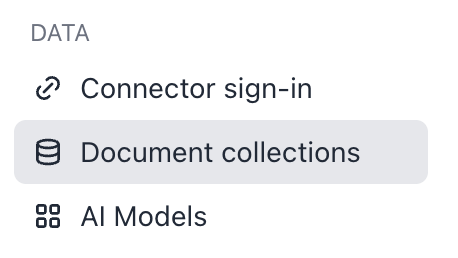
- Navigate to Document Collections from the left sidebar.
- Click the Create new collection button in the top-right corner.
- In the dialog that appears, fill in:
- Name — Give your collection a clear, descriptive name (e.g., “HR Policies” or “Product Documentation”). A good name helps your teammates understand what the collection contains.
- Description — Add a short description of what kind of content the collection holds. This is also shown to agents running Smart Filtering to help them choose when and how to query the collection
- Click Create Document Collection.
You’ll be taken to your new collection’s configuration page automatically.
Configuring Your Collection
After creation, your collection has four tabs:
-
Configure This is where you set up your collection’s content and settings: Metadata — Edit the name and description of your collection at any time. Smart Filtering Schema — Define custom metadata fields for your documents (e.g., department, document type, date). This enables more precise filtering when your agent searches the collection. Data — Add content to your collection (see below). Performance — If available, enable dedicated search capacity for faster results on large collections.
-
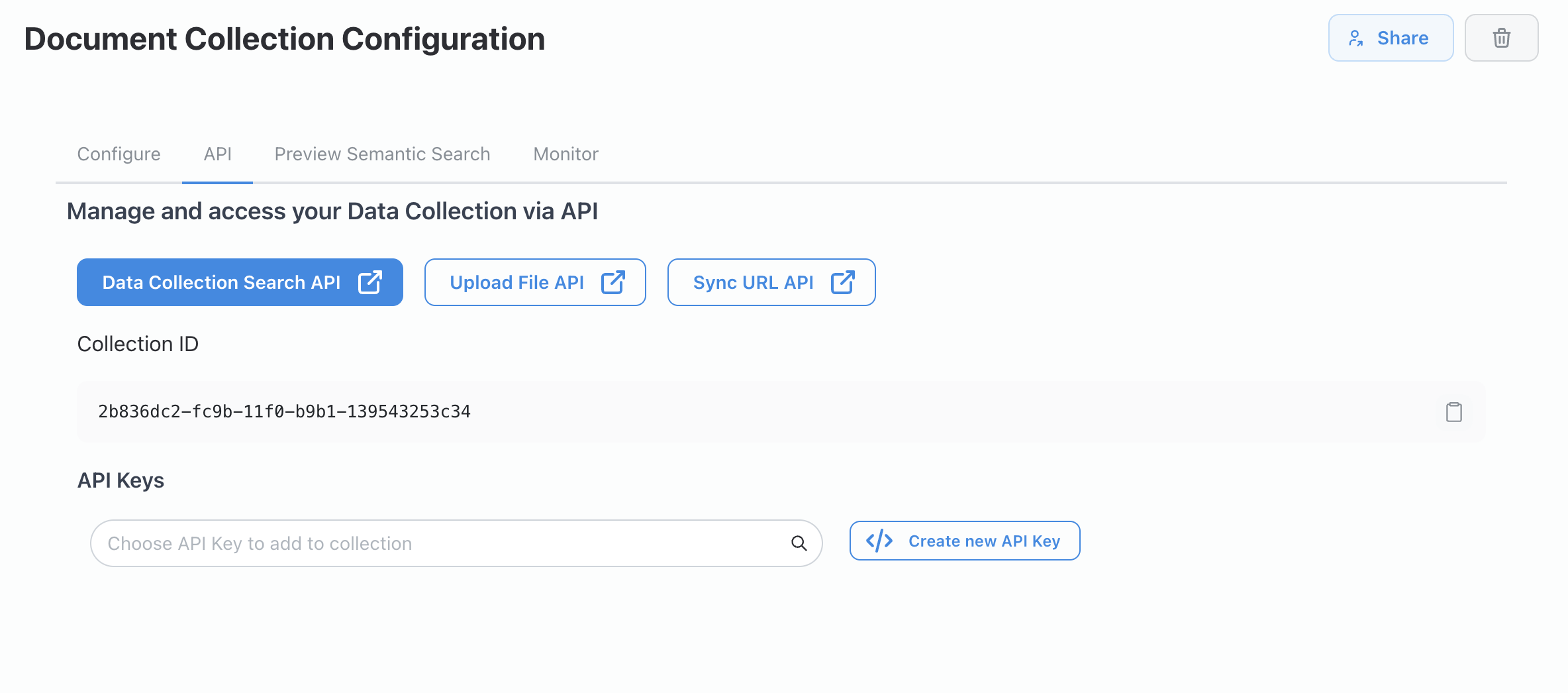
API View your collection’s unique ID and manage API keys for programmatic access. This tab also links to API documentation if your developers need to integrate with the collection.
-
Preview Semantic Search Test your collection by running sample searches. This helps you verify that the right documents are being found before connecting the collection to an agent.
-
Monitor View a log of searches that have been run against your collection.
Adding Content to Your Collection
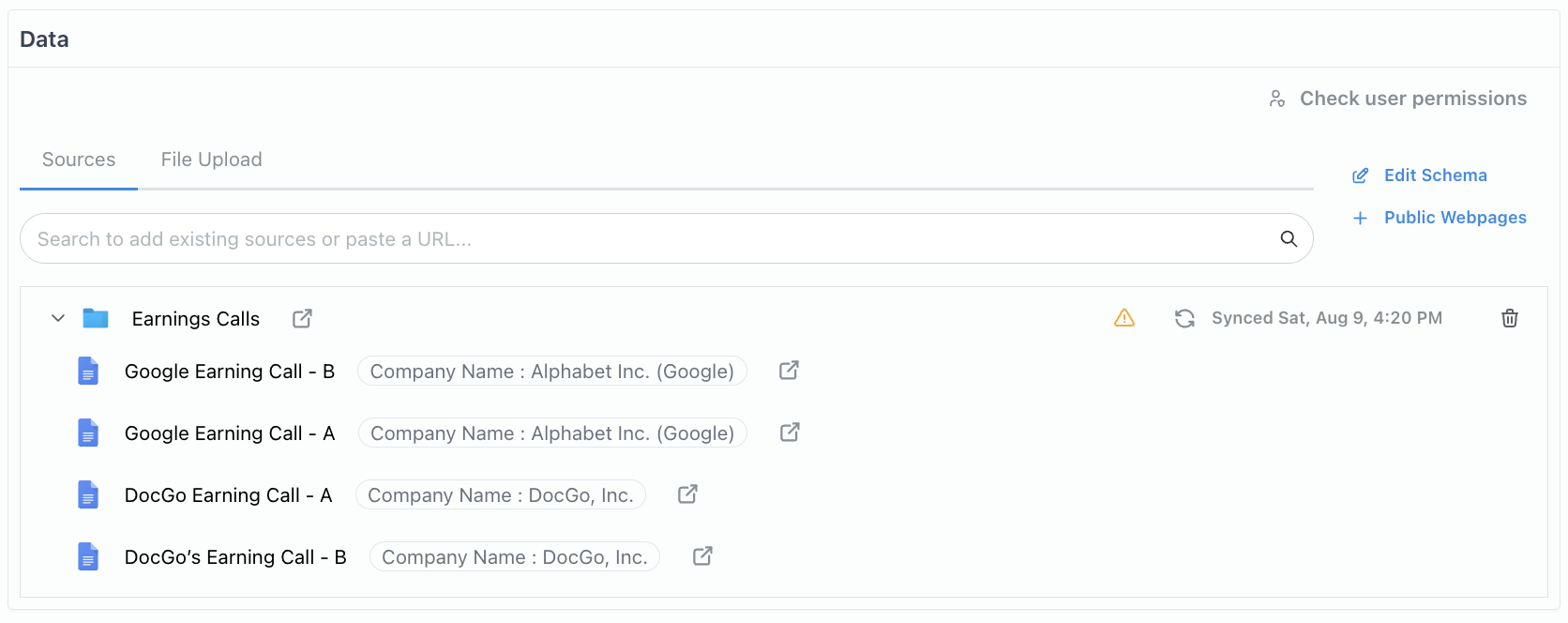
From the Configure tab, scroll to the Data section. You have three main ways to add content: Search & select existing sources — Use the search bar to find documents, folders, or data sources already in your organization’s catalog and add them to the collection. Upload new files — Upload documents directly from your computer. Public Webpages — Click the Public Webpages button to add content from publicly accessible web URLs.

Sharing Your Collection
Click the Share button at the top of your collection’s page to manage who has access: Add collaborators by searching for teammates within your organization. Remove collaborators by clicking the remove icon next to their name. Organization admins automatically have access to all collections.
Note: Every collection must have at least one collaborator. You cannot remove the last remaining collaborator.
Connecting a Collection to an Agent
To use your collection as a knowledge source for an AI agent:
- Open the agent you want to configure in the Agent Builder.
- Go to the Data Sources section (or Connectors, depending on your interface).
- Select your document collection as a data source.
The agent will now be able to search your collection’s content when answering user questions, respecting each user’s document-level permissions.
Deleting a Collection
- Open the collection you want to delete.
- Click the trash icon button at the top of the page.
- Confirm the deletion in the dialog.
Deleted collections are moved to the Deleted tab on the Document Collections page and are no longer active.
Deep Summarize on Documents
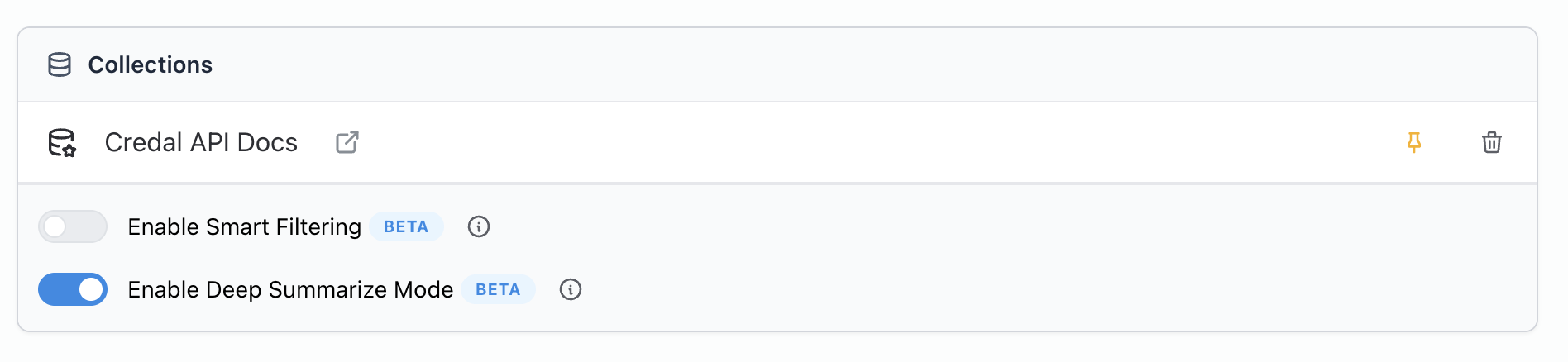
When enabled, the agent queries every document in each selected collection against key topics derived from your query, then synthesizes cross-document results for higher-quality overviews, lists, and summaries.
Smart Filters
Smart Filtering lets your agent use document metadata and auto-extracted entities to filter out to the most relevant documents, sending only the most relevant content to the LLM, improving precision and reducing noise.
Deep Summarize on Documents
Deep Summarize asks each document in your selected collections targeted questions based on your query, then merges the answers into a concise, structured synthesis. This produces summaries that:
- Pull in only the most relevant points from each document
- Organize findings into clear sections or bullet lists
- Capture key insights, decisions, action items, and risks across sources
- Draw from multiple documents, not just one
How to Enable:
Best Practices
- Include must-answer questions or focus areas to steer extraction
- For very large documents, ensure they’re split into sections for better coverage and accuracy
When you shouldn’t use it:
- Deep Summarize is very powerful for getting responses for multiple documents
- However if you know that there are only a few relevant documents you want answers from, this will dilute those results.
Smart Filters
Smart Filtering narrows searches to documents matching specific metadata or entities, ensuring only the most relevant content is sent to the LLM.
- Smart Filtering only works on document collections
- Filters items in a document collection by SQL queries to select on relevant documents
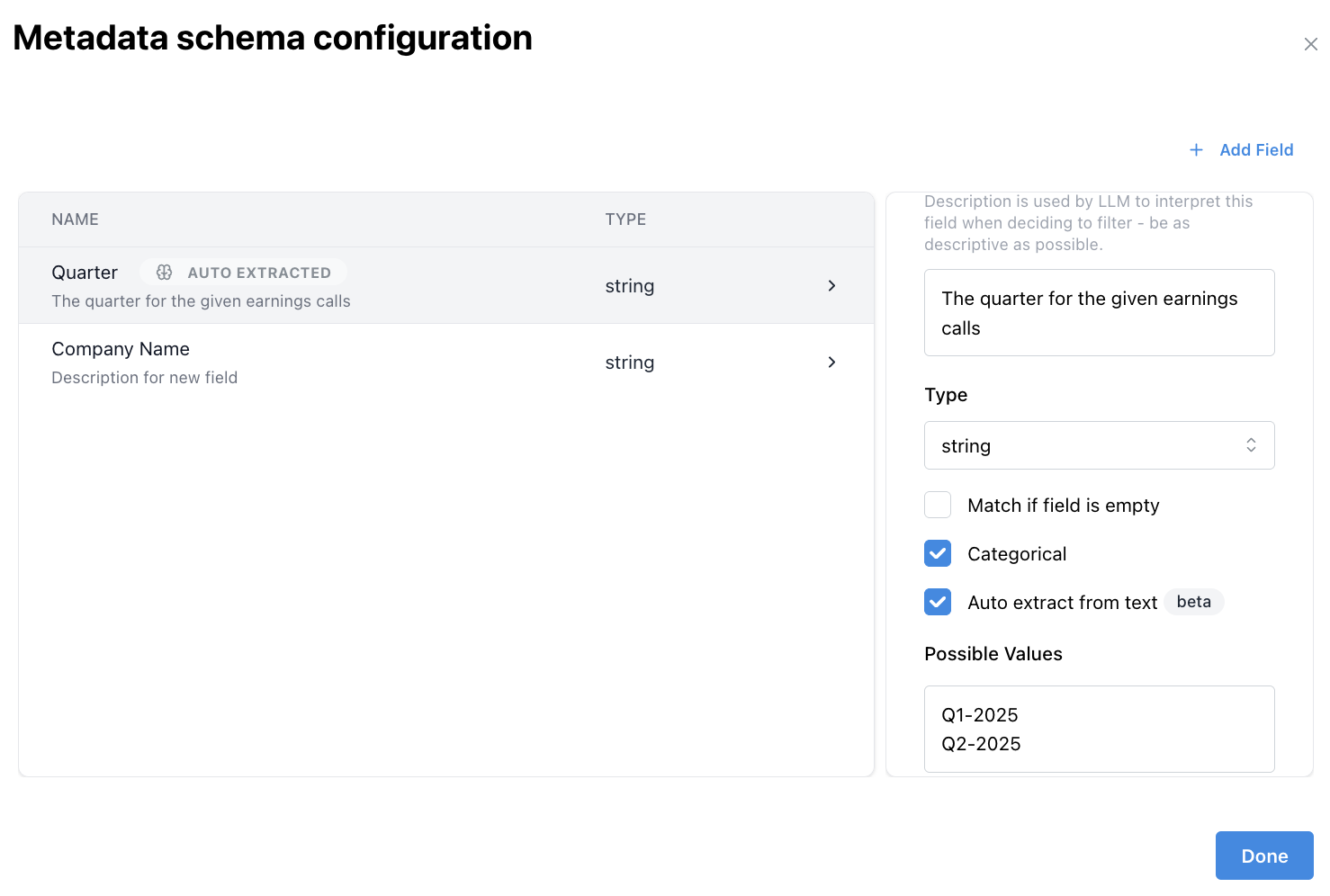
- For smart filtering to work you need to setup metadata schema for your document collection
- The benefit is that you can draw insights from many more documents in your collection
Example: Smart Filtering
-
Enable Smart Filtering:
-
Setup your document collection with a metadata schema:
-
Once you have your schema setup, sync/resync your documents to generate metadata
-
In your agent, make sure to add prompt instructions to filter on metadata.
-
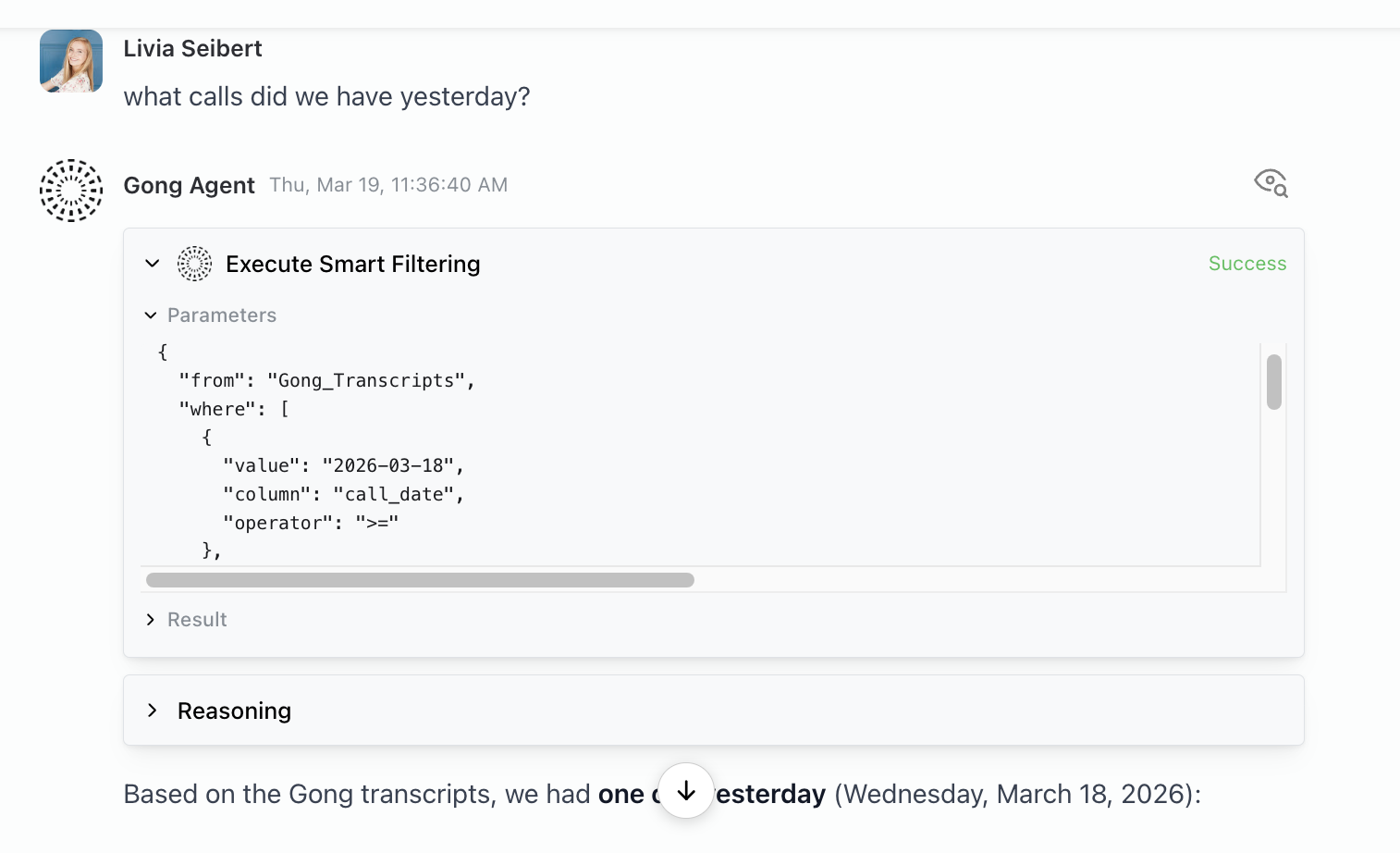
Send a chat, in the action results section you can see what smart filters were applied
How does smart filtering work:
Smart Filtering works by checking each document’s metadata, schema fields, or auto-extracted entities against your filter criteria. After that it filters down your searchable set of documents, improving the results generated.