

Actions
In this section, you can attach one or more published actions to the agent. Actions allow agents to dynamically connect to external systems or trigger workflows based on user input.
-
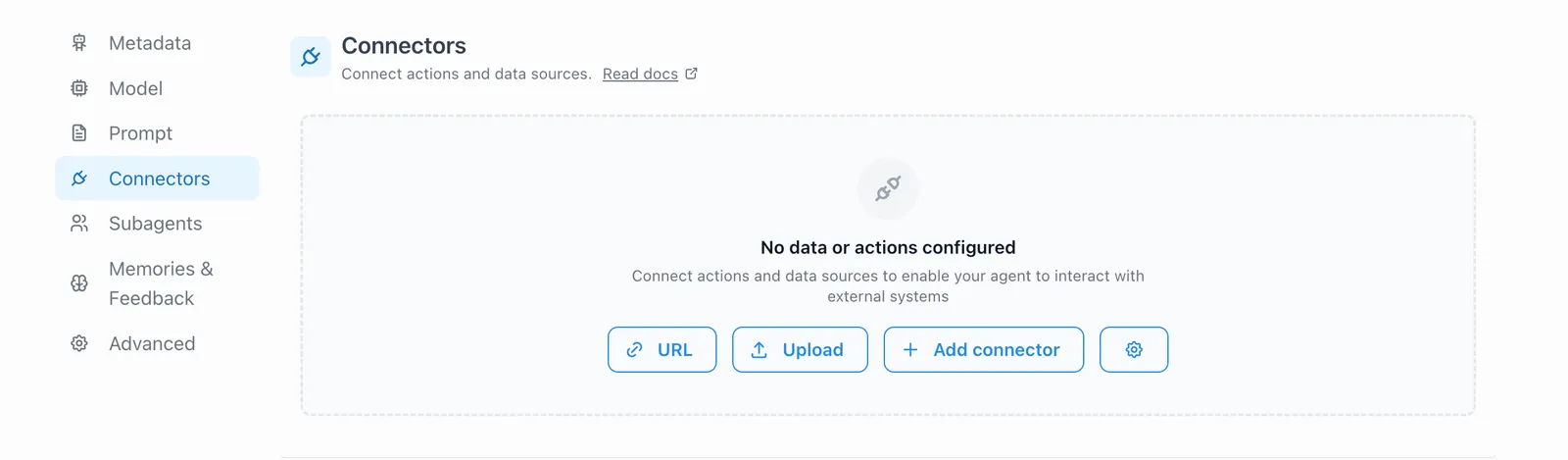
Click on Add Connector to view all the action providers available to you
-
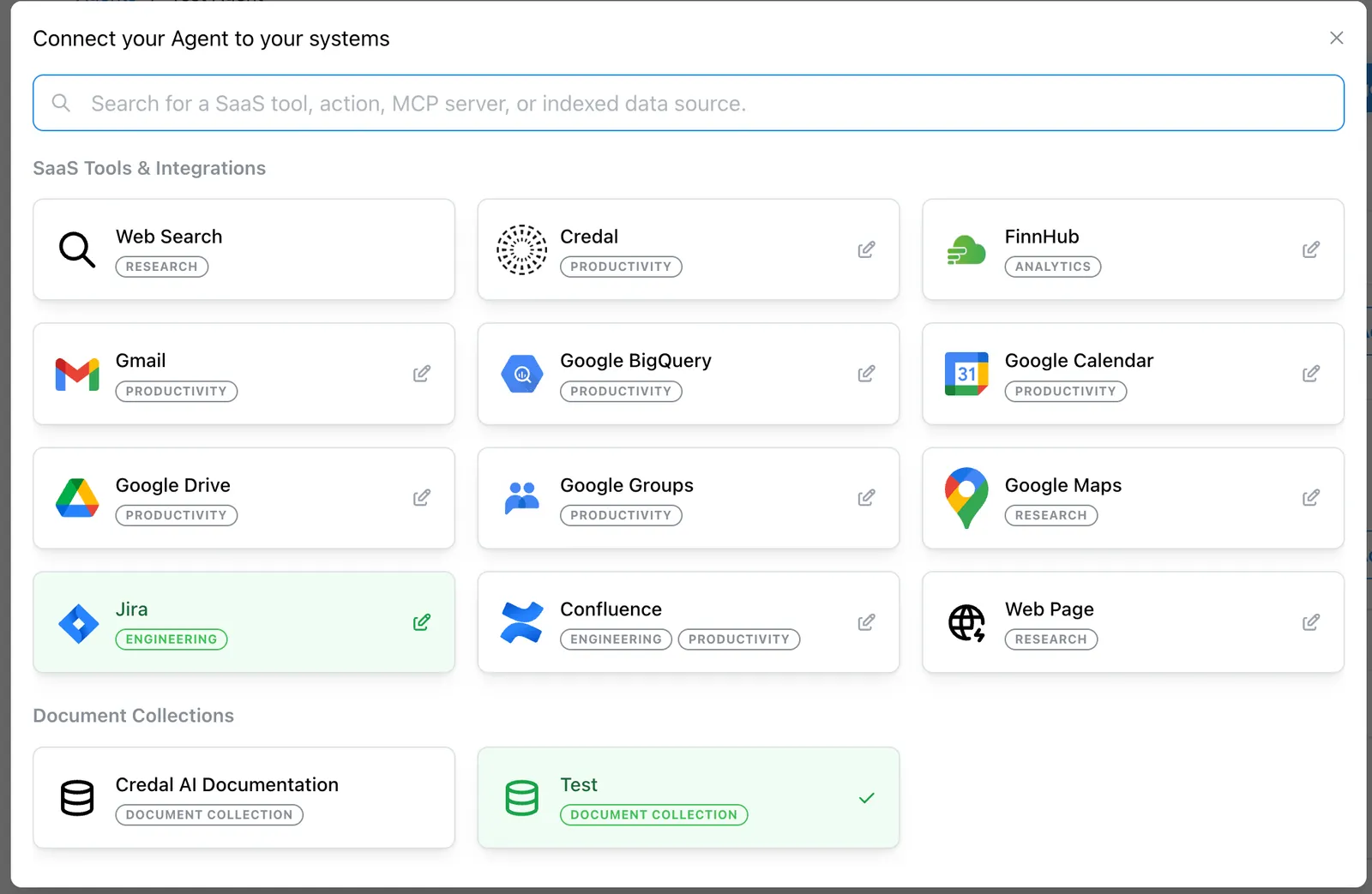
Use the dropdown to search for an action used within a particular tool/integration
-
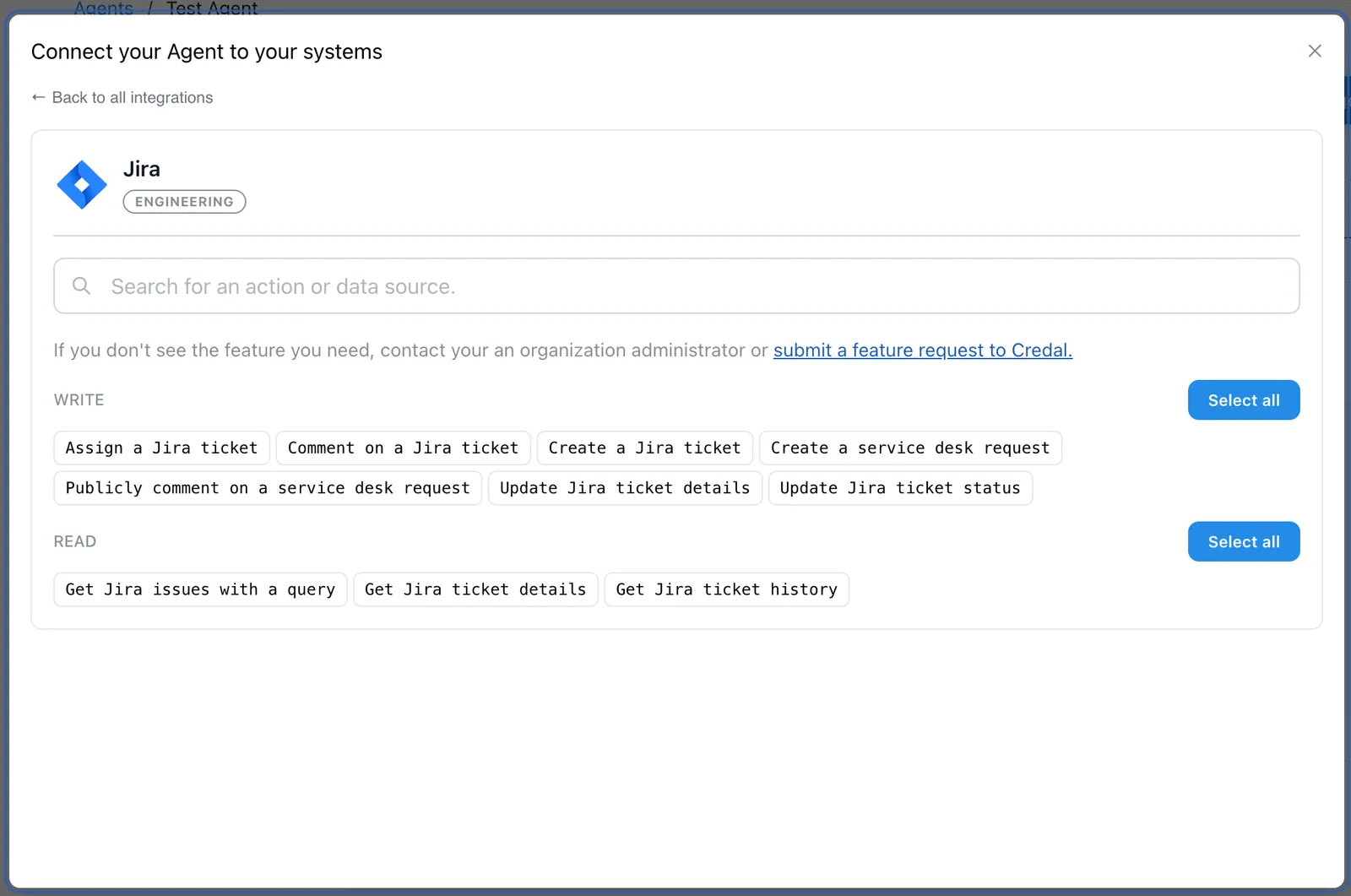
Select one or more read or write published actions
- Read actions will query data and retrieve it for the agent to consume
- Write actions will take real world action and accomplish tasks within tools
- Once all the actions are selected click the “Add” button in the bottom right
-
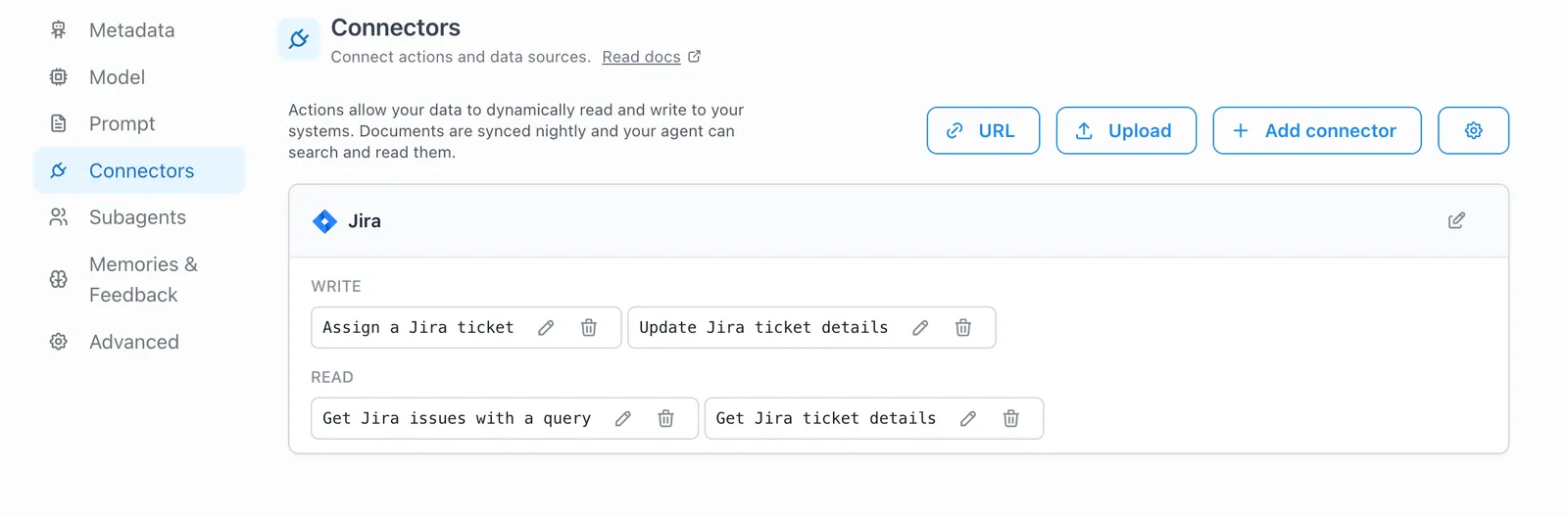
You’ll see it show up in the connectors section of the agent configuration
-
This is where you can further configure them
- Click on the pencil icon to edit and personalize them
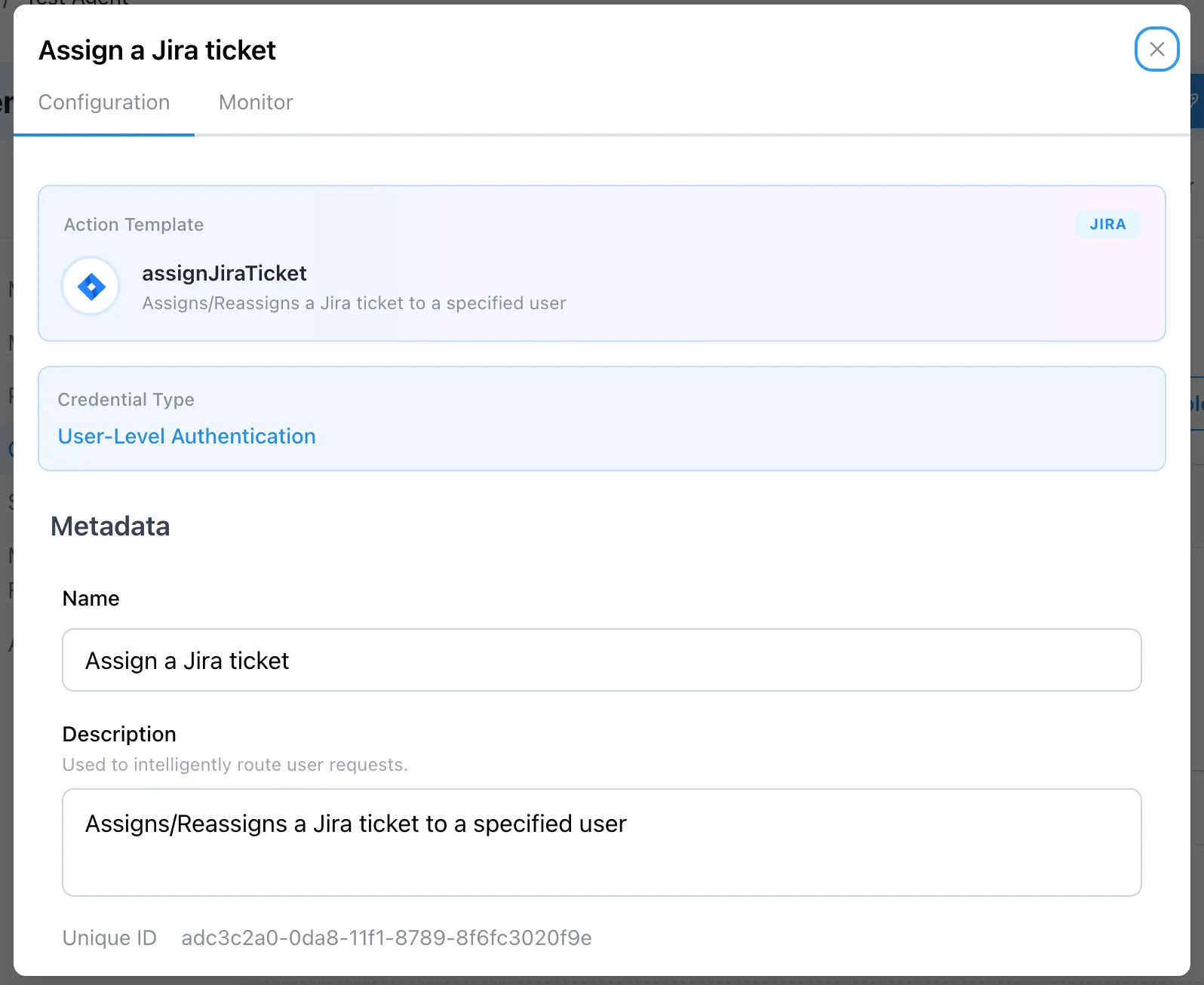
- Click on the pencil icon to edit and personalize them
-
When editing the action you can scroll down to modify the parameters of the action. Learn more about customizing action parameters.
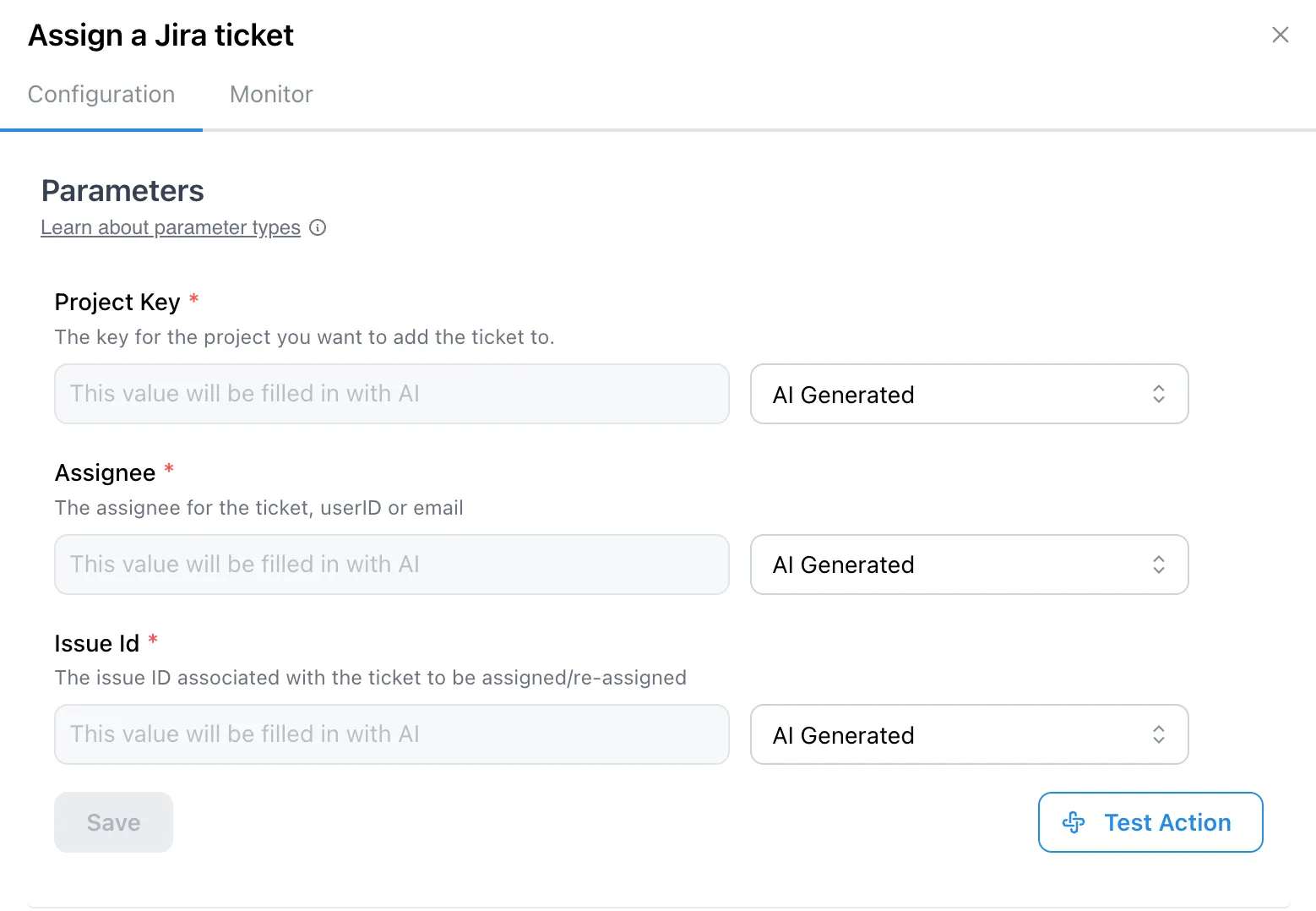
-
If you scroll even further you’ll be able to see the optional human in the loop settings. This setting makes sure that the agent asks for permission every time it needs to take this action. It will wait for the user to approve usage of the action before proceeding.

-
Once added you’ll notice the small orange hammer icon on the action

Attaching the right actions ensures that your agent can not only respond to questions but also execute real-world tasks across integrated systems.