

Publishing your Server
Publishing works the same way for both Credal-built MCP servers and third-party imported servers. The same deployment options, admin setup, and access controls apply to all servers.
One-Time Admin Setup
To make Credal MCP servers available in Claude or ChatGPT, an admin needs to complete the organization-wide setup in Connect MCP Clients and connect the following URLs once at the organization level:
- Claude:
https://app.credal.ai/api/user/claude/mcp - ChatGPT:
https://app.credal.ai/api/user/chatgpt/mcp
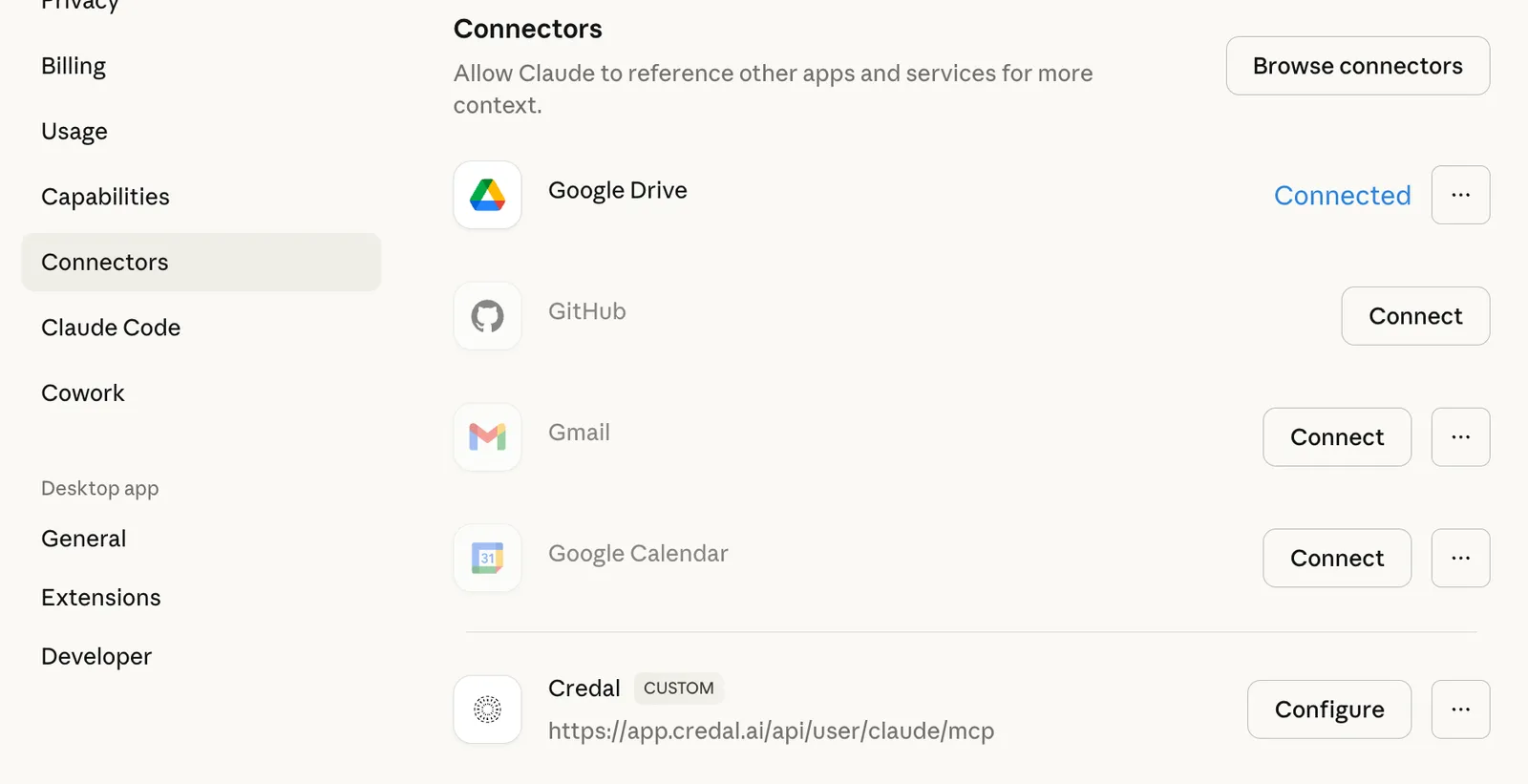
Once connected, all published MCP servers will be available to users in that service without any further configuration.
Publishing Your Server
Once your MCP server is ready, you have two ways to deploy it. Navigate to the Publish tab where you’ll see the following settings:
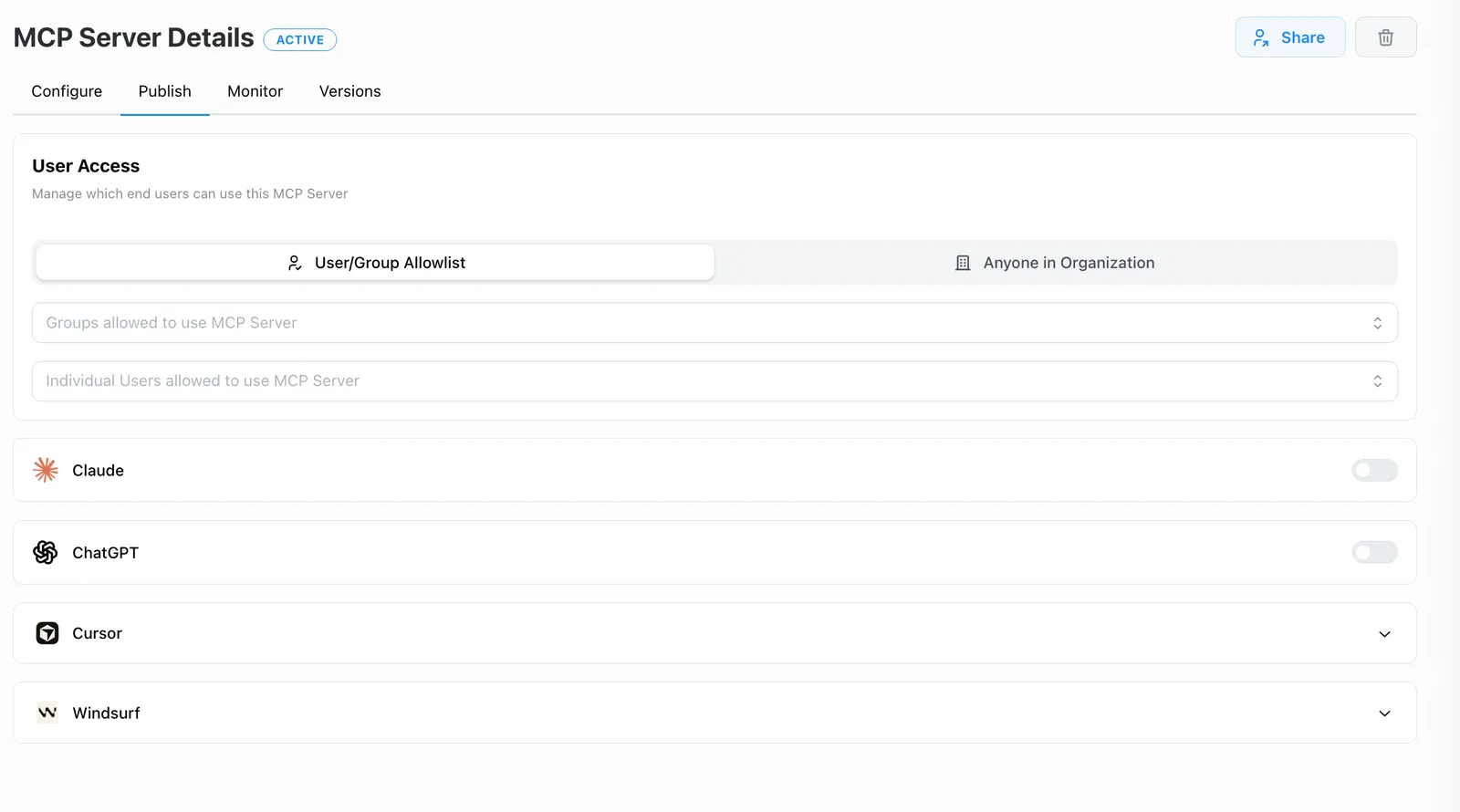
For Claude and ChatGPT
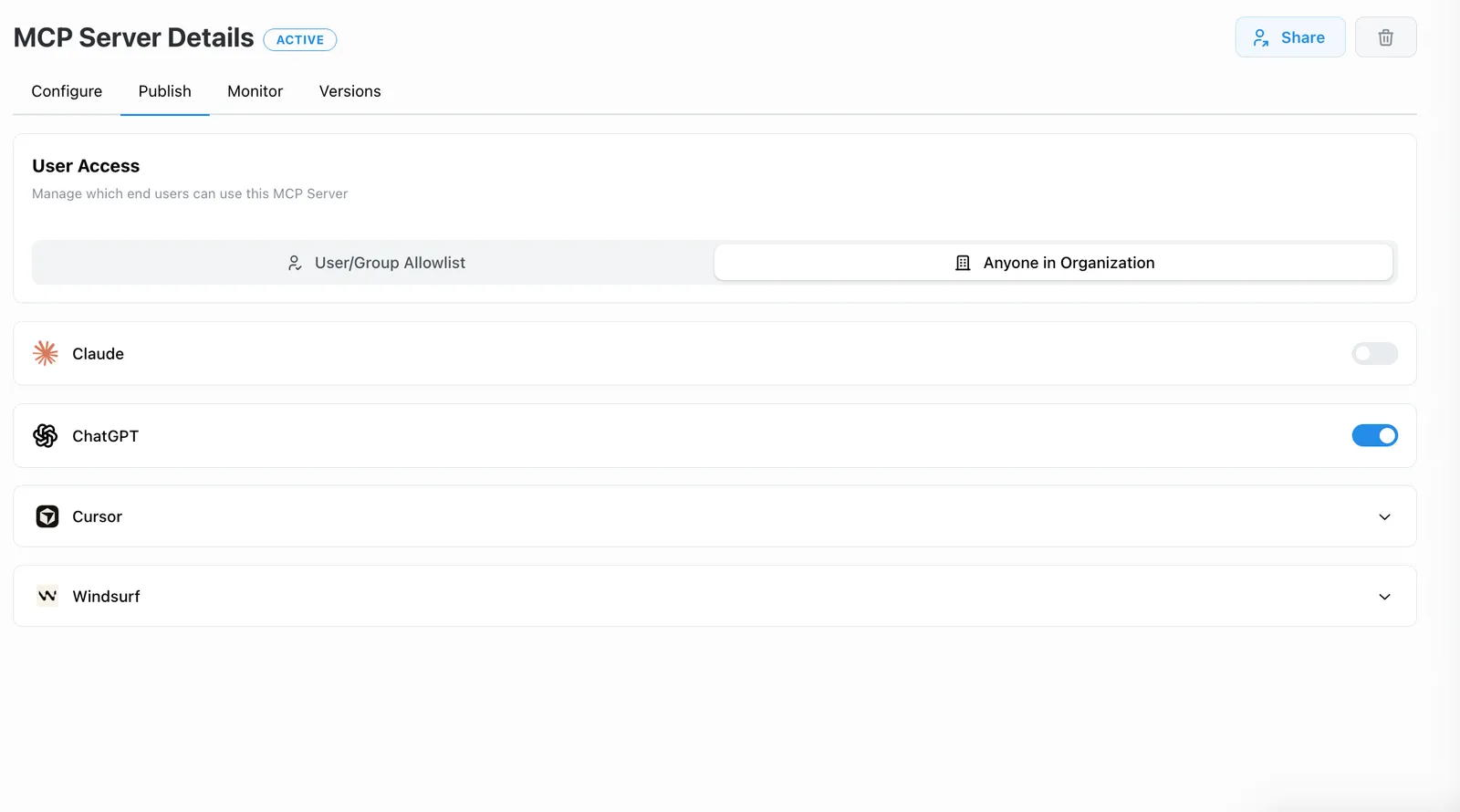
The one-time admin setup above is all that’s needed. Your server becomes available to all users in those services automatically once published.
Here is an example of how you can directly publish to all users in ChatGPT
For Other MCP Clients
For all other surfaces, such as Lovable, Cursor, Windsurf, or any custom MCP client, each user must connect the URL individually:
- Lovable:
https://app.credal.ai/api/user/lovable/mcp— this single URL gives Lovable access to all your published MCP servers. - Other clients (e.g., Cursor, Windsurf): Copy each server’s direct URL from the Publish tab and add it to the client manually.
Each server also exposes an advanced endpoint that unlocks features like human approval for tool calls. See Advanced Usage for details.
Access Control
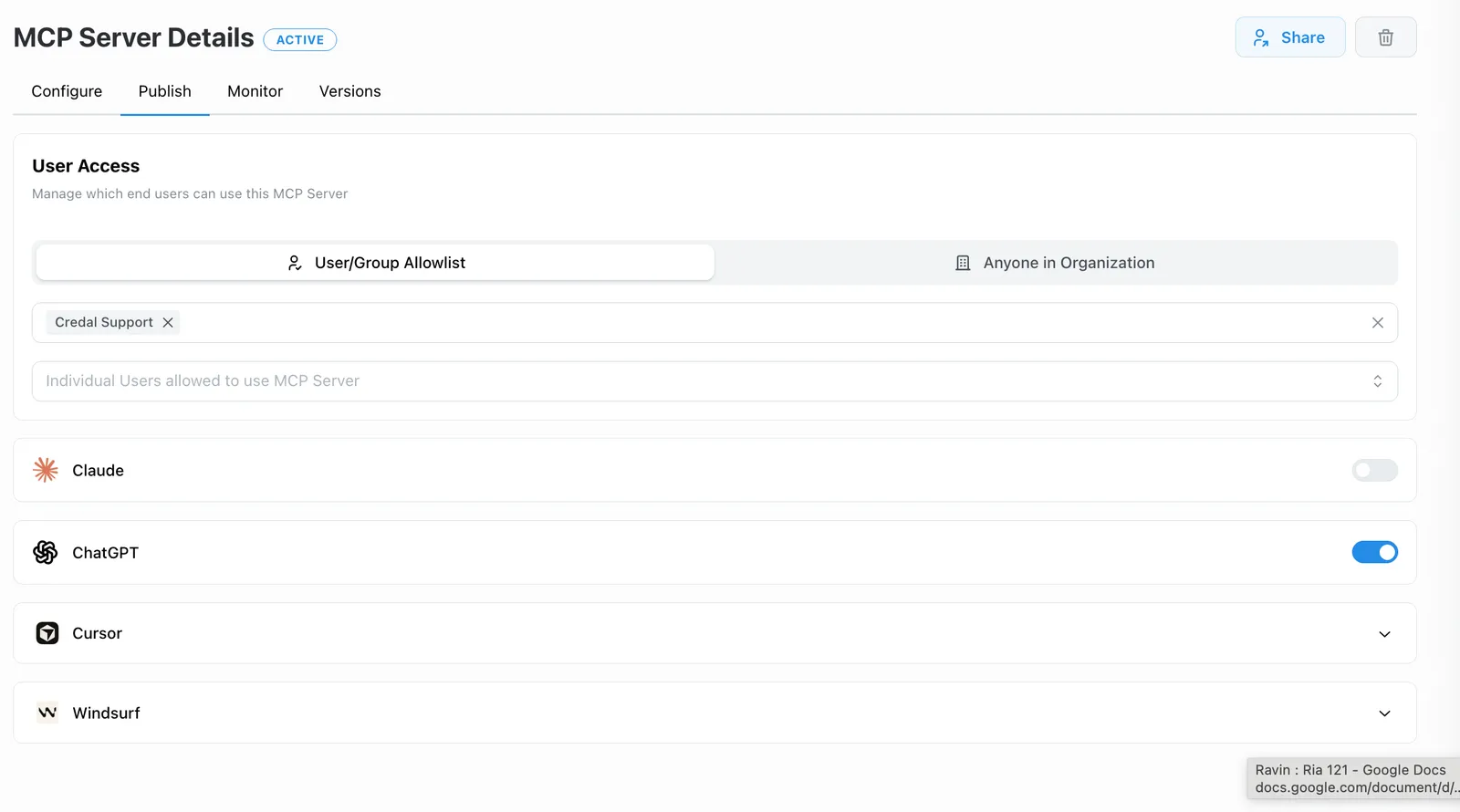
Regardless of how you publish, MCP server builders can configure end-user allowlists to control exactly which users can access the server within their chat service, giving admins fine-grained control over visibility and access.
Here is an example of how I would scope visibility down to just one user group. The user group is fetched from your identity provider.
Once your server is live, see Monitoring Usage to track sessions, inspect action invocations, and review the full audit trail for every tool call.