

Testing Your Agent
You can test your agent through Credal’s UI or in third-party applications like Slack.
Testing in Credal’s UI
To test an agent in Credal, select your agent by clicking Select Agent in the chat menu.
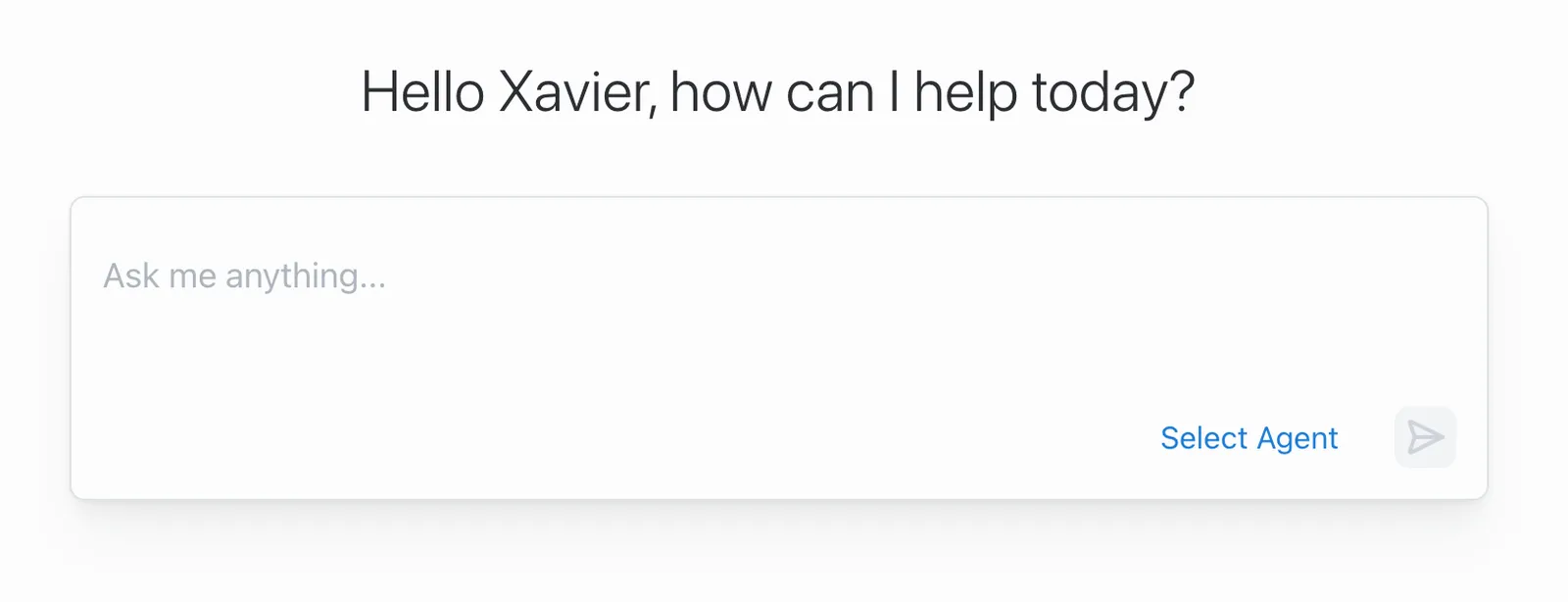
This will open a popup where you can select your desired agent.
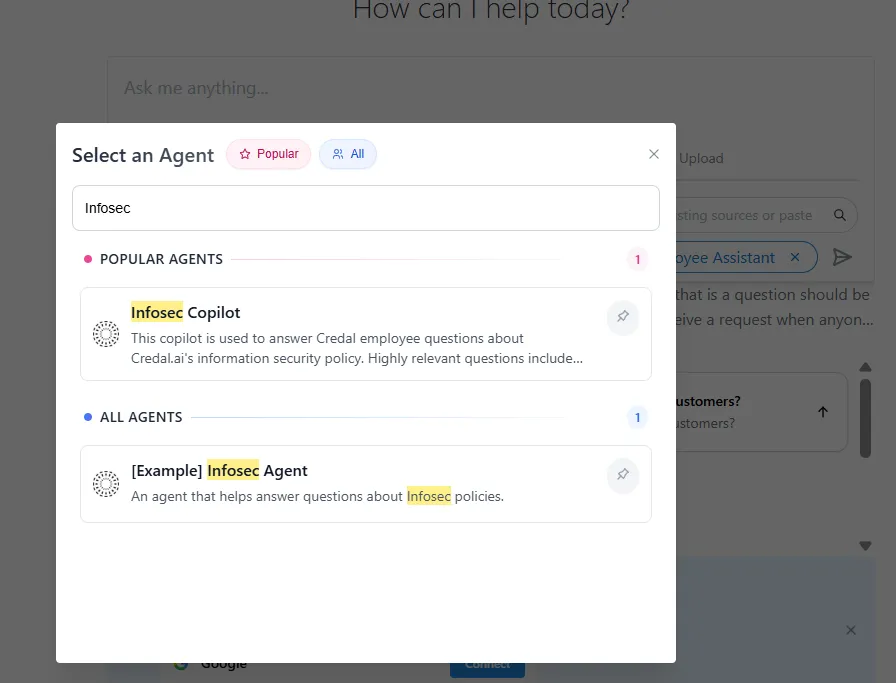
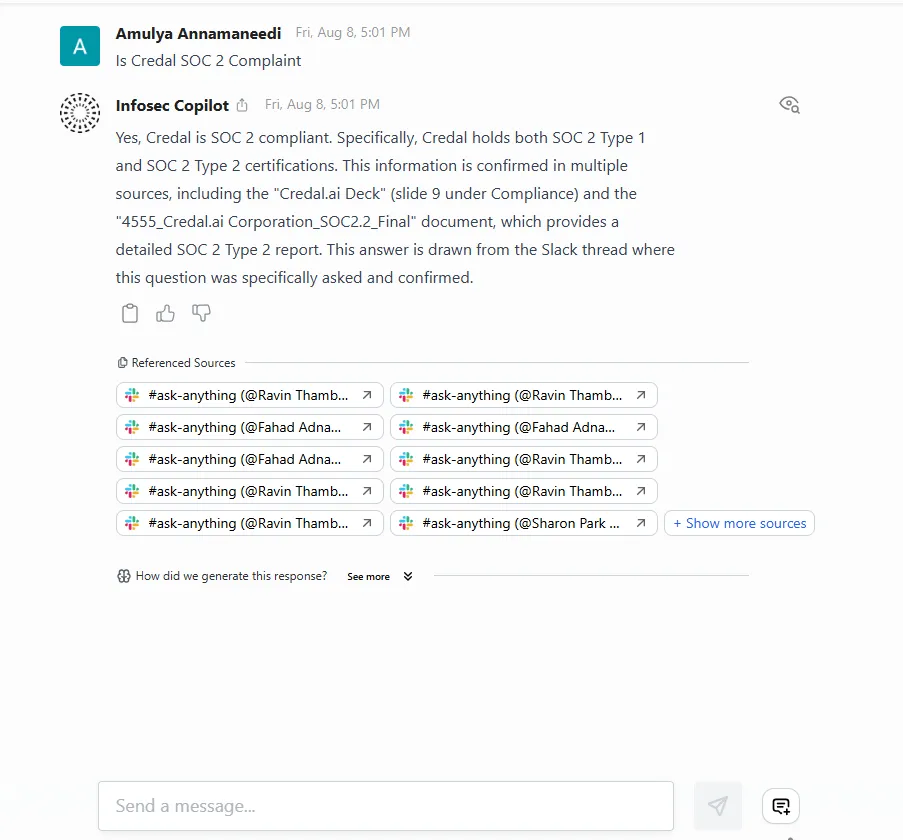
Then simply type your questions in the search bar. Your agent will return an answer, citing the sources relied upon, which you can click to review.
Testing in Slack
If you want to test your agent in Slack before rolling it out broadly:
- Create a dedicated test channel (e.g.,
#agent-testingor#hr-bot-beta) - Publish your agent to this test channel following the Agents in Slack guide
- Invite a subset of beta testers to the channel
- Test various queries and scenarios with your beta group
- Iterate on your agent’s configuration based on feedback
- Once satisfied, publish to your production channels
This approach lets you refine your agent’s behavior, routing settings, and responses in a controlled environment before exposing it to your entire organization.
For details on how agents respond in Slack channels and routing configuration options, see Agents in Slack.
Iterating on Your Agent’s Instructions
As you test your agent, you’ll likely need to refine its instructions (system prompt) to improve response quality. Pay attention to:
- Whether the agent is answering questions accurately
- If the tone and style match your expectations
- How well it handles edge cases or out-of-scope questions
- Whether it’s using the right data sources and actions
Use the feedback from your testing to iterate on the agent’s background prompt, adjusting its role, goals, output format, and specific instructions.
For a comprehensive guide on writing and optimizing agent instructions, see Writing Instructions.
To evaluate prompt changes at scale and systematically measure their impact on agent performance, use Evaluations. This allows you to test different prompt variations against a set of test cases and compare results objectively.
Testing Actions with Dry Run Mode
When testing agents that use actions, you can use dry run/preview mode to see what an action would do without actually executing it. This is particularly useful for:
- Testing actions that modify data (create, update, delete operations)
- Validating that the agent is selecting the right actions and parameters
- Reducing risk when testing new workflows in production environments
- Training and onboarding scenarios where you want to demonstrate functionality without side effects
Dry run mode allows you to safely test your agent’s decision-making and action invocation logic before allowing real execution.
Troubleshooting
To systematically measure and track agent quality over time, see the Evaluating Your Agent guide.
a. The AI is unreachable
If you get an error message that the AI is currently unreachable, there may be a few causes.

- Too much context data: This error can also appear if too much context data is being pulled into each prompt through a combination of pinned data, context, Q&A, and searchable sources. This happens because the data the agent reviews each time is running up against the AI’s length limits. Reducing the amount of data that the AI reviews every time can resolve the issue.
- Sometimes having too many pinned sources, or pinned sources that are too large, can alone cause this issue as those sources will be read by the AI in their entirety each time a user asks a question. Try moving your pinned sources to searchable sources to resolve the issue.
- If that does not work, try reducing the volume of other context being considered in each prompt. Start by reducing the number of chunks returned when your agent searches for relevant data. If you are still seeing problems, contact Credal support for assistance.
- System outage: This error can also appear if the AI provider is experiencing an outage or degraded performance. Credal monitors for outages and will automatically fail over to another model to keep your agent running. If the issue persists, you can also manually switch your agent to a model from a different provider in the model selector.