Overview
The Evaluate tab helps you systematically test and measure your agent’s performance across a set of test questions. For basic interactive testing, see Testing Your Agent. You can use this feature to monitor response quality over time and gauge the impact of changes such as prompt updates, data additions, or configuration adjustments.
Adding Test Cases
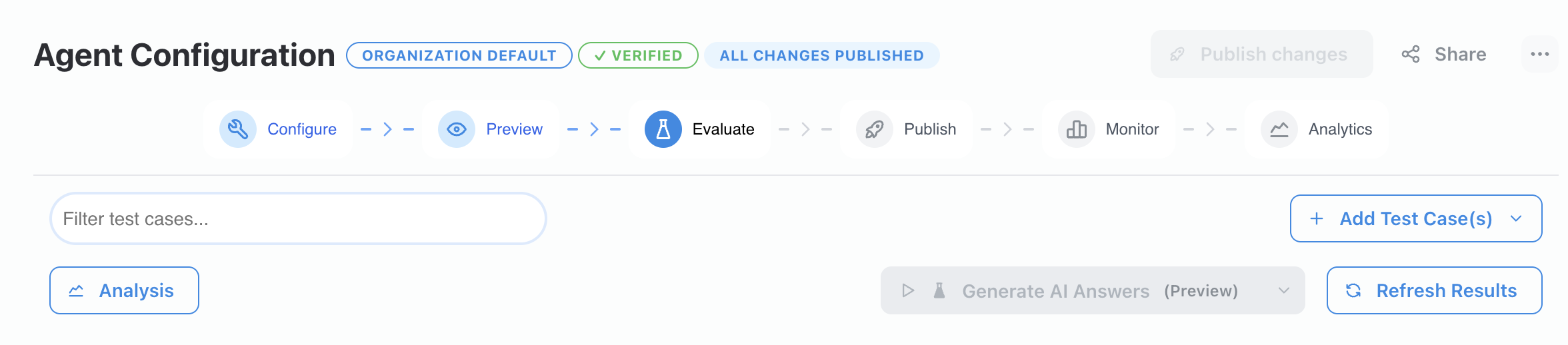
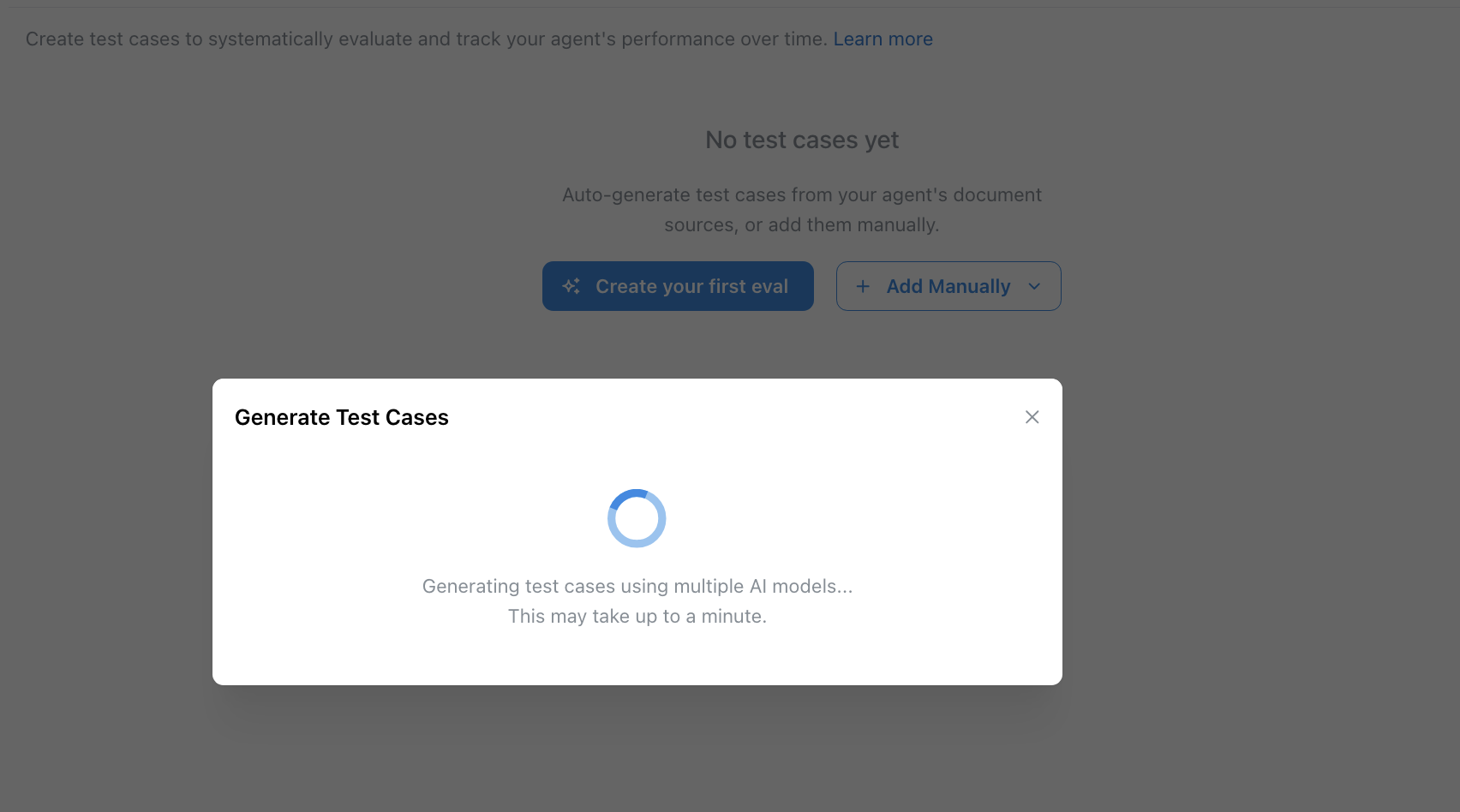
Use the “Add Test Case(s)” button to create test questions. You can optionally provide expected answers for reference, though these are not required for evaluation.
Generating Test Cases with AI
In addition to manually adding test cases, you can use AI to automatically generate a diverse set of evaluation questions with scoring rubrics. Click the “Generate Test Cases” button (marked with a sparkle icon) to open the generation modal.
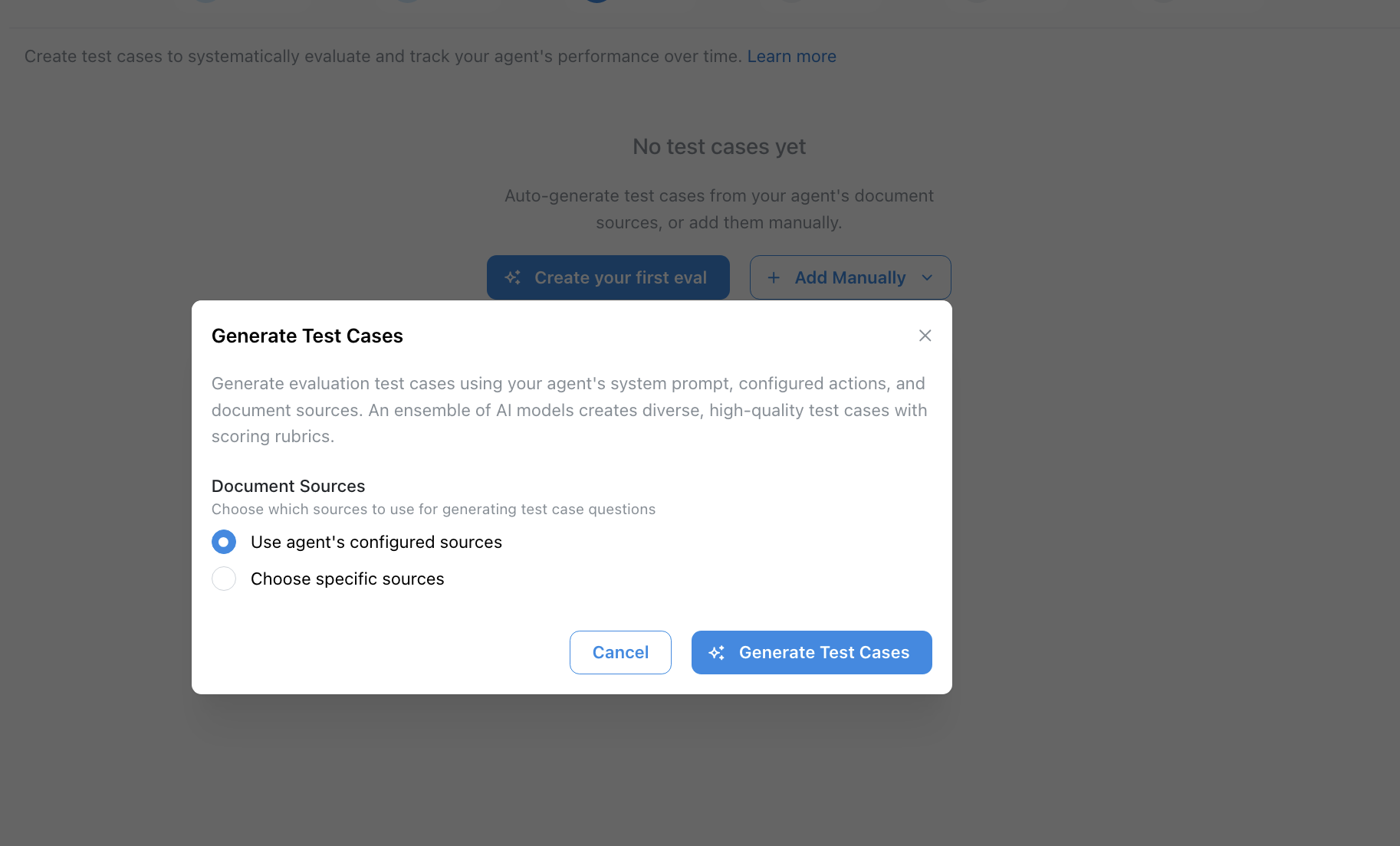
The generator examines your agent’s full configuration — including its system prompt, available actions, connected document sources, and MCP servers — and uses an ensemble of AI models to produce 8–12 high-quality test cases. Each generated test case includes:
- A realistic question that a user of your agent would plausibly ask.
- A weighted scoring rubric with 2–4 criteria that sum to 100 points, defining what a good answer looks like.
- Relevant source references, linking the question to specific documents in your agent’s knowledge base when applicable.
The generated questions are designed to cover a range of scenarios: straightforward factual retrieval, complex multi-step reasoning, action-triggering workflows, ambiguous or vaguely worded inputs, and adversarial or out-of-scope requests.
Choosing Document Sources
When generating test cases, you can choose which document sources inform the questions:
- Use agent’s configured sources (default): The generator pulls sources from your agent’s semantic search and pinned sources configuration, including any collections.
- Choose specific sources: Manually select a subset of sources to focus the generated questions on particular documents or topics.
Once generation starts, an ensemble of AI models analyzes your agent’s configuration and produces test cases. This may take up to a minute.
Once generated, the test cases appear in your Evaluate tab alongside any manually created ones. You can edit the questions and rubrics, or delete any that don’t fit your needs.
Creating Test Cases from Monitor Logs
You can turn real conversations from your agent’s Monitor tab into test cases. This is useful when you spot interactions worth tracking — good responses you want to preserve as golden examples, or bad ones you want to catch in future regressions.
- Go to your agent’s Monitor tab and select one or more log rows using the checkboxes.
- Click “Add to Eval Set” to open the test case wizard with those conversations pre-loaded.
- Choose which eval folder to organize them into (or create a new one).
- Optionally annotate each log with a quality label (good response, bad response, golden example, edge case) and add rubric instructions describing what the agent should have done.
- Review your selections and confirm.
The test cases will appear in your Evaluate tab, ready to be scored in your next evaluation run.
Creating Rubrics
For each test question, you can define a custom rubric that specifies what makes a good answer. Rubrics allow you to:
- Set specific criteria the answer should meet (e.g., “Must cite the XYZ document as a source”).
- Assign point values to different criteria.
- Provide scoring guidance for the evaluation.
Running Evaluations
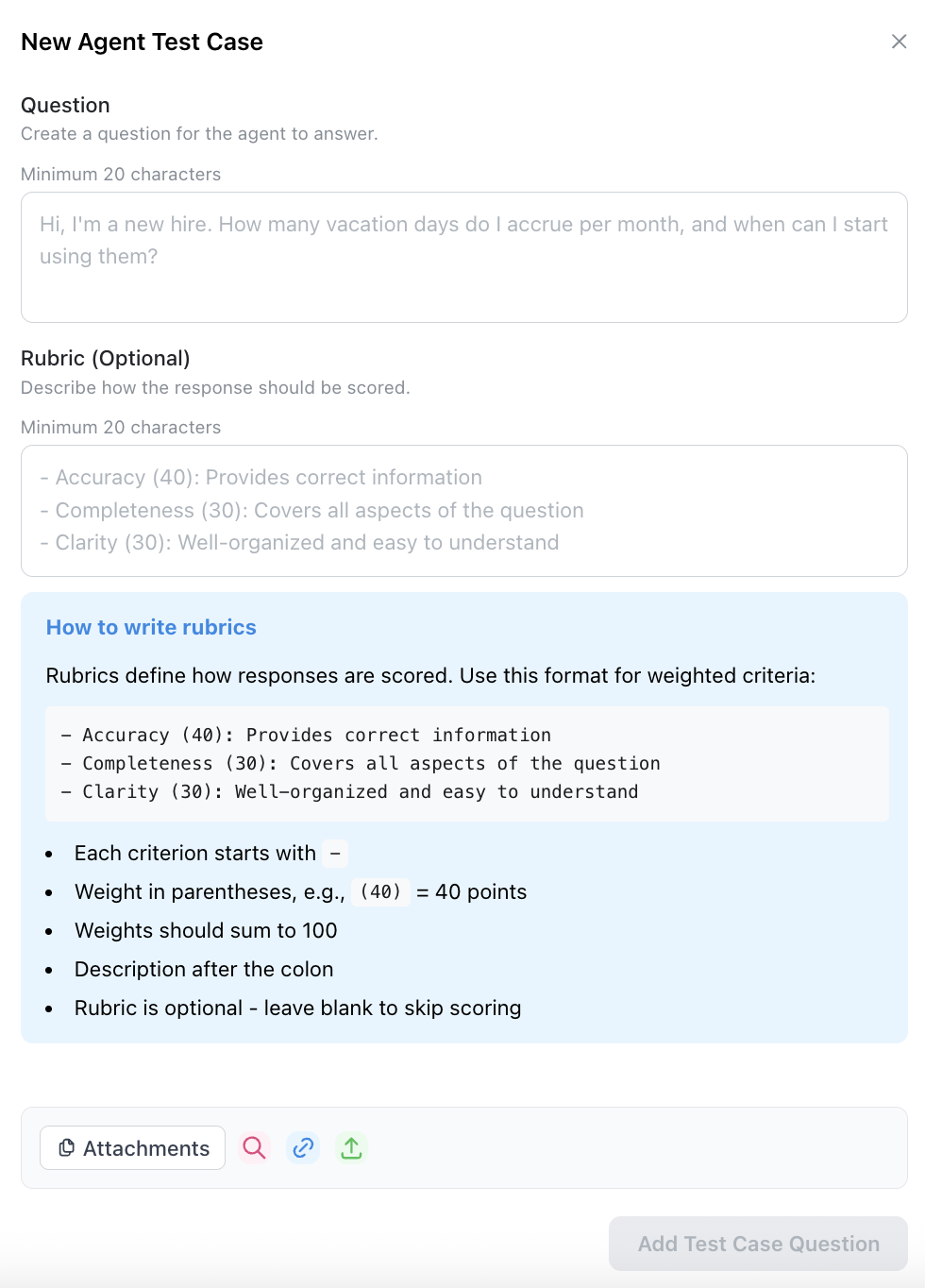
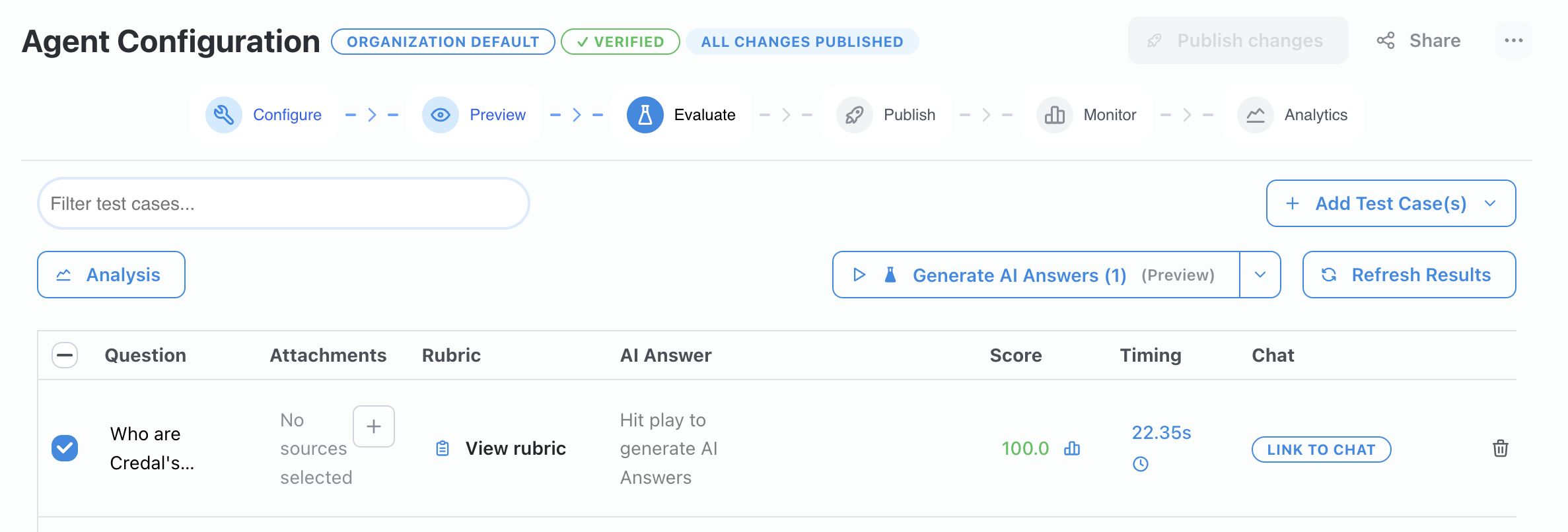
Click “Generate AI Answers” to test your agent against all questions. The agent will generate responses and automatically score them based on your defined rubrics.
Tracking Performance
- View scores for each response based on your rubric criteria.
- Compare current scores against past evaluations in the “Past Scores” column.
- Monitor how configuration changes impact agent performance across versions.
- Use version control to test different agent configurations and compare results.
After a run completes, the Agent Reliability Score (ARS) provides a composite 0–100 reliability score across dimensions like accuracy, consistency, source fidelity, and cost/latency efficiency.
To compare how different model configurations perform against the same test cases, use the Benchmark tab.
Note: The Evaluate tab currently runs tests on your Preview version of the agent.
Watch a video walking you through how to use the Evaluate tab below:
Coming Soon
We’re actively developing additional evaluation capabilities. If you’d like early access to any of these features, please contact us at support@credal.ai:
- Evaluation gate before publishing: Require agents to pass evaluation thresholds before they can be published, ensuring quality standards are met before deployment to end users